Lead Queue for Zoho CRM
Time management is essential in any organization. Finishing activities faster will pave way for room for more activites and hence more output. Track how much time is consumed by each activity and convert all these leads to successful completion.
Install the extension
You can either go to the Zoho Marketplace and install the Lead Queue extension or log in to your Zoho CRM account and install. On installation, the extension will be available for all the users in the Zoho CRM's organization account.
To install Lead Queue
- Go to Setup > Marketplace.
- Clicking Marketplace will list all your installed extensions.
- Under All Extensions you can view all the extensions supported in CRM.
- Scroll down and click Lead Queue to see the extension details.
- Click Install Now.
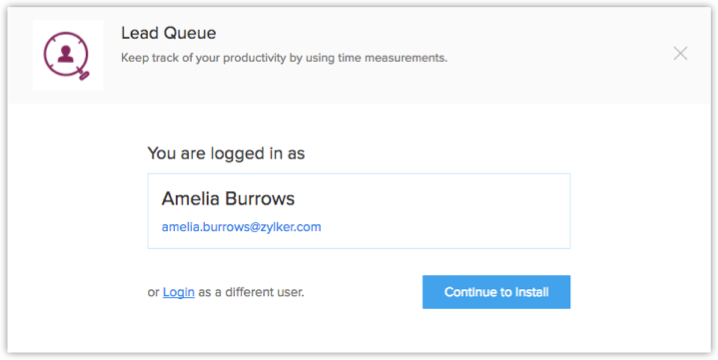
- Agree to the terms of service and click Continue to Install.
- Choose one of the following and click Confirm.
- Install for Admin only - The extension will only be installed in CRM for the users with an administrator profile.
- Install for All Users - The extension will be installed for all users.
- Choose profiles - The extension will be installed for all the users with a particular profile. To use this option, click Continue and then select the desired profile.
The extension will be installed to the specified users.
Create a new queue:
To create a new queue
- Click the dropdown button in the top-left. The button will titled Leads by default. Select +Create Queue from the dropdown.
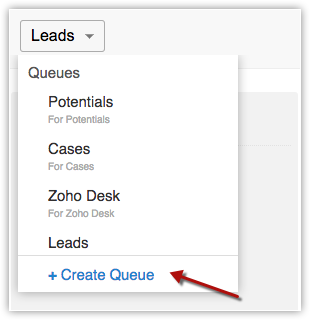
- Enter the name of the new queue to be created in the following pop-up.
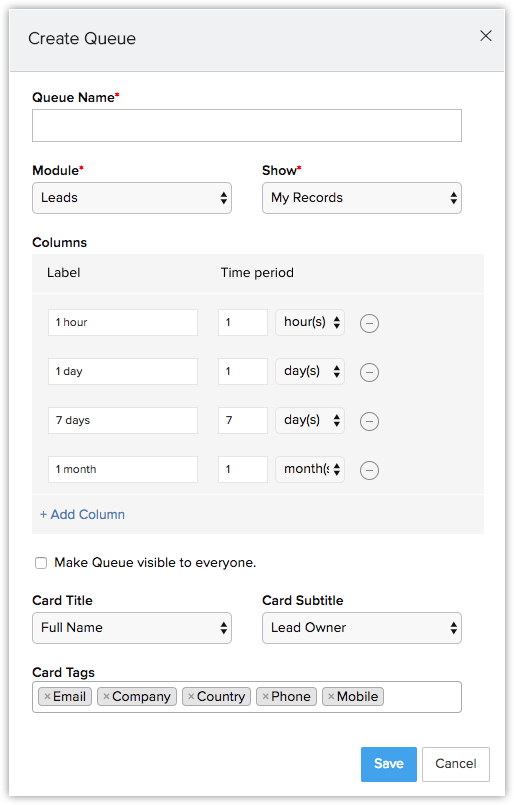
- Select the Module that you need to create a board for from the dropdown. Custom modules will also be listed here.
- In the Show field, select if you want to be shown only your records or all the records associated with that module..
- In the Columns field, you can set a label and the time period for each column, hence tailoring your queue to suit your requirements.
You can also add any number of columns to customize it the way you want. - Next, select the CardTitle, CardName, and CardTags. These are the values displayed in the record's summary in each column.
- Click Save.
Edit or Delete an existing queue
To edit or delete a queue
- Hover over the current queue button, then select the Edit option.
- Make the necessary changes in the resulting pop-up.
- Click Save.
- To delete a queue, click the Delete button present next to the queue.

Note
- You have to manually refresh the feed to update the queue. The refresh button can be found on hovering over the current queue button.
Uninstall the extension
If you wish to uninstall Lead Queue, please be aware that all the records in the queue will also be deleted.
To uninstall Lead Queue
- Go to Setup > Marketplace > All.
All the installed extensions are listed. Under All Extensions you can view all the extensions supported in CRM. - Browse for Lead Queue and click the corresponding Uninstall link.
- Click Ok to confirm.
Related Articles
How are Leads, Accounts, Contacts, and Deals associated in a sales process?
Lead refers to the information of an individual or representative of an organization, collected from various lead sources like trade shows, seminars, advertisements and other marketing campaigns. In Zoho CRM, you can manually enter leads, import ...Which edition will the new CRM account be subscribed to?
Zoho CRM allows users to access multiple organizational (CRM) accounts using the same email address. This is especially useful for organizations who maintain different CRM accounts to manage their business, such as a franchisee or a subsidiary. The ...FAQs on Reports
1. What are reports in Zoho CRM? As an organization, the more you grow, the more complex your data becomes. This data holds powerful information about your customers, employees, profit, sales, opportunities, and other aspects of your business. It is ...I am unable to create new CRM organizations. Why is this?
In the following cases, you will not be allowed to create a new organization: If you are already associated with 10 org accounts. If you are a Super Admin in five org accounts. You can be associated with up to five more accounts through invitation ...Can I invite a CRM Plus or Zoho One account user to join a CRM org? How many Zoho One accounts can they be part of?
Yes, a CRM user can be invited to a CRM plus or Zoho One account. You must consider the following points: A CRM user can be part of 9 CRM Plus accounts through invitation. A CRM user can be part of 1 Zoho One account as an internal user. Whereas, the ...