How to set password preference for export policy
As a measure of security, you can use passwords to protect the files that are exported. You can use Zoho Campaigns' default password or set a password specific to a particular file.
By default, Zoho Campaigns' default password will be set for the protection of exported files. This setting can be changed and password protection preference can be set by the admins as per your organizational requirements.
How can I set/change password protection preference for file export?
1. From the Navigation toolbar, select Settings tab.
2. Click Export Policy under Campaign Policy.
3. In the Export Policy page, protection by Zoho Campaigns' default password is enabled by default. You can alter this setting by clicking Change.
4. Set the required preference:
- Select Use Zoho Campaigns' default password if you want your users to protect their files using Zoho Campaigns' default password. Zoho Campaigns' default password is the combination of the first four characters of your users' email address and the last four digits of your users' Zoho user ID. This password will be used for every file that is exported.
- Select Set file-specific password if you want your users to set a custom password to their file.The usage of this password is limited to the export of the file for which it is set. The file cannot be opened if users forget the password.
- If you want to let your users decide on using password (be it Zoho campaign's Default password or file-specific password) or skipping it for a particular export, select Allow users to choose between setting password and skipping it for a particular export.
5. Click Save.
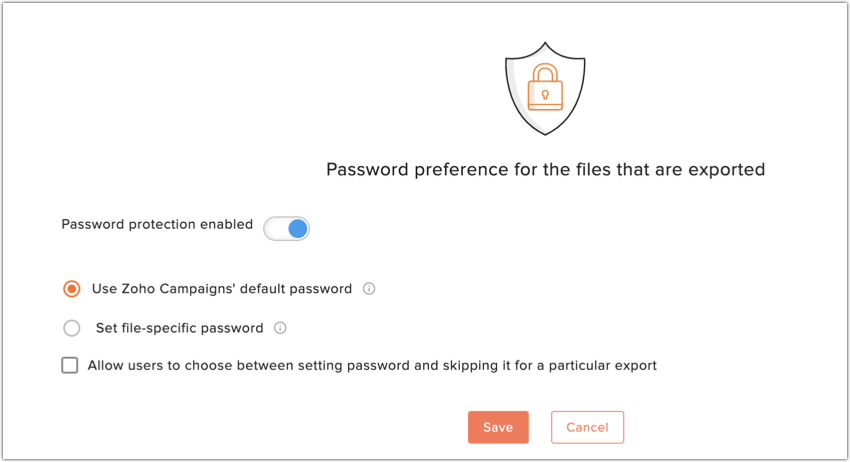
You can change an existing preference by following the same steps mentioned above.
 Note: Remember that the password preference can be set only by admins of an organization.
How do I disable password protection for file export?
If you want to allow your users to export files without protecting it with a password, you can disable password protection by following the steps given below.
1. From the Navigation toolbar, select Settings tab.
2. Click Export Policy under Campaign Policy.
3. Click Change.
4. You can disable password protection by switching off the Password protection switch.
Note: Remember that password protection can be disabled only by admins of an organization. What happens when Zoho Campaigns' default password is chosen?
When Zoho Campaigns' default password is chosen as the type of password for the protection of exported files, users need not set a new password for every file. All the files that are exported will be protected using Zoho Campaigns' default password which is the combination of the first four characters of users' email address and the last four digits of users' Zoho user ID. Opening these files will require users to enter the default password.
What happens when Zoho Campaigns' default password is chosen and users are allowed to skip using password for a particular export?
When this setting is chosen, users can export files using Zoho Campaigns' default password or by skipping the password usage for a particular export. The users can choose to skip password usage while a file is exported. This option can be seen in Export Contacts page, as shown below.Users can proceed with using the default password or skipping password usage by selecting the corresponding radio button.
What happens when file-specific password is chosen?
When file specific password is chosen as the type of password protection, users should set a new password for every file that is exported. The usage of this password is limited to the export of the file for which it is set. The file cannot be opened if users forget the password. Password can be set in the Export Contacts page as shown in the image below. Opening these files will require users to enter the password that was set.
What happens when file-specific password is chosen and users are allowed to skip using password for a particular export?
When this setting is chosen, users can open the exported files using the passwords they set up, or by skipping the password usage for a particular export. The users can skip password usage while a file is exported. These options are in the Export Contacts page. Users can proceed with using the set password or skipping password usage by selecting the corresponding radio button.Users can set a password in the Export Contacts page for the file that is exported. These options are in the Export Contacts page. Users can proceed with using the set password or skipping password usage by selecting the corresponding radio button.Users can set a password in the Export Contacts page for the file that is exported.
Related Articles
Sender Policy Framework (SPF)
Spam is a major bottleneck issue that the email marketing industry faces on a daily basis. Fraudsters often try to forge the sender address of emails and try to perform malicious activities. The only way to protect your emails and improve ...How can I open campaign policy?
From Navigation toolbar, click Settings and click Campaign Policy to view it. You can view sections like email policy, content approval and export policy.Topics
We have recently updated Topics in Zoho Campaigns. Please click here for the updated help document. Using Zoho Campaigns, you can categorize your mailing lists under different topics so that you send your contacts the right emails. Let them choose ...Who can set email limits?
An organization's email limits, also called email policy or email-sending policy, is a set of conditions for the appropriate use of the email system. In Zoho Campaigns, an email policy defines how many times it's appropriate to contact a contact ...Who has content approval privileges?
Administrators can set content approval for those users whose campaign content should be reviewed before getting published. Admins can select View Approvers to see the organization administrators that has content approval privileges.