Social Login
Your customers can now use their social media accounts to login to your store. For this easy login to happen, you need to set up the process from the backend.
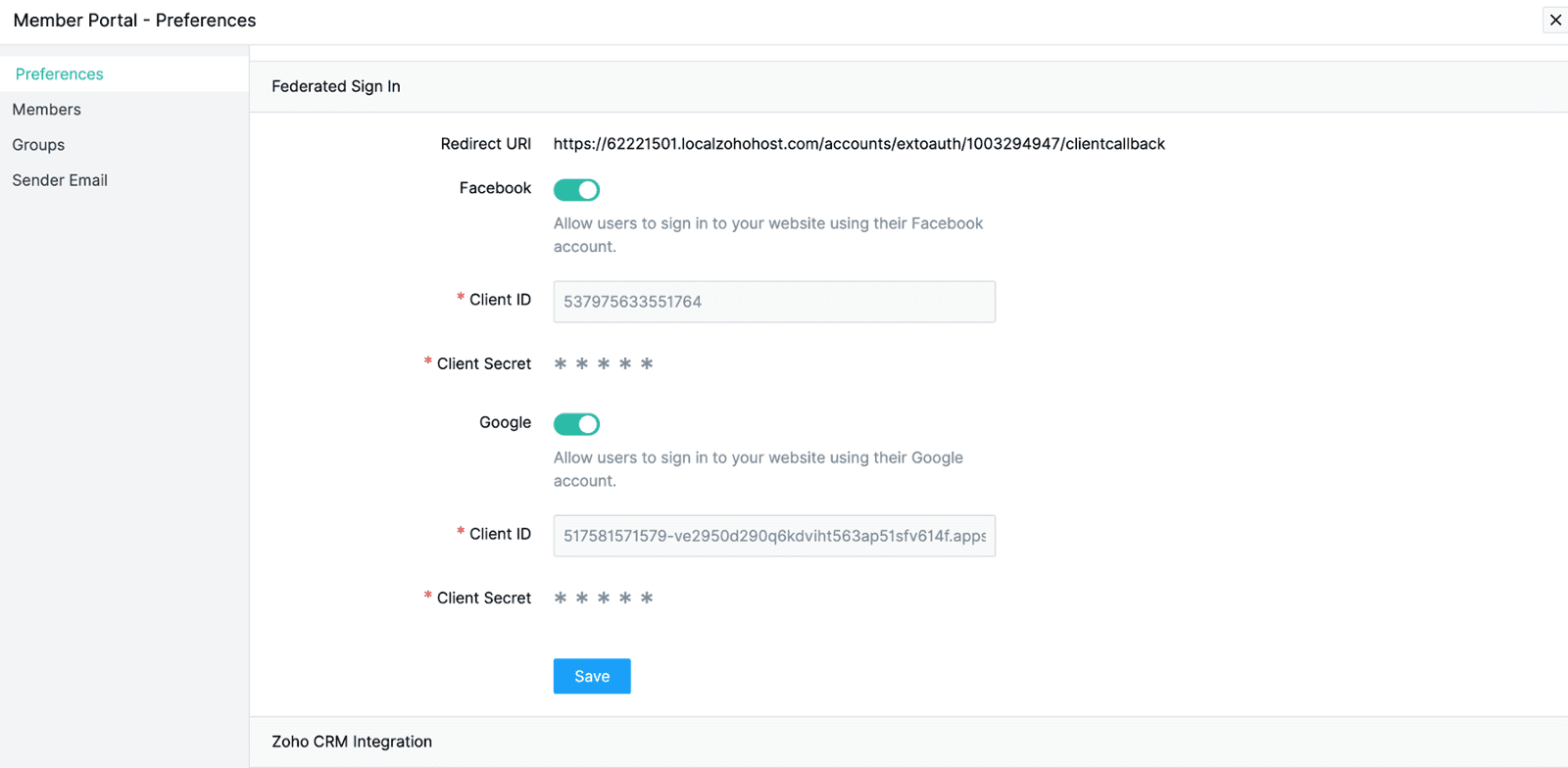
1. Go to Site Settings > Member Portal under General.
2. Head to Social Login under Preferences section.
3. Enable Facebook and Google sign in by moving the toggle.
4. Once enabled, the redirect URI will appear. Use this link to redirect Google Client and Facebook App.
Click here to learn more about creating a Google client.
Click here to learn more about creating a Facebook App.

After obtaining Client ID, Client Secret, App ID, and Secret, update the values on this screen.
Related Articles
Social Profile
This feature allows you to add and display your social networks for your store. Go to Settings > Social Profiles under Configure Settings. Click the Enable Social Profile toggle to activate social networks for your store. Drag and drop the social ...Social Share
This feature enables you to adjust and reorganize the social media network options in your store. Go to Settings > Social Share under Configure Settings. Click the Social Share toggle to activate this feature. Click the Style drop-down to choose ...Social Preview Image
This feature enables you to change the display image of your website in social profiles. The image you upload as your Social Preview Image will be displayed when your store name is searched for in social media. Go to Site Settings > Social Preview ...Social Auto Publish
This feature enables you to automatically publish the blogs you write on your social network profiles. Go to Settings > Social Auto Publish under Configure Settings. Domain If you don't have a domain for your store yet, click Add Domain to add your ...Adding Social Share as an element in your store
Click '+' icon on the top banner of the Site Builder. Click "+ Element" to add social networks as an element in your store. Select Apps from the list of elements displayed, and choose Social Share. Here, you can view and reset the changes made ...