Migrating from Maximizer CRM to Zoho CRM
Zoho CRM supports only .CSV file format for migration of data. However, the export data from Maximizer CRM is in .BAK format. To convert your data to .CSV format, you can contact our experts (migration@zohocrm.com), who will assess the possibilities and help convert the data from .BAK to .CSV.
To submit a request
- Go to Setup > Data Administration > Import.
- In the Data Migration page, do the following:
- Choose Maximizer CRM.
- Click Contact our experts now, to submit your request for converting the file into .CSV.
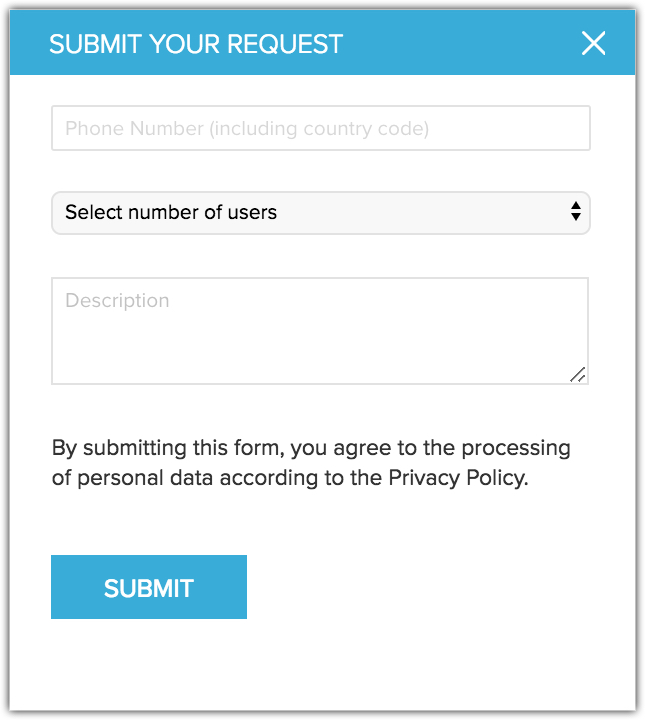
- In the Submit your request popup do the following:
- Enter the Phone Number with country code.
- Select the Number of users from the drop-down list.
- Enter a Description and click Submit.
- Once you get the .CSV file, you can browse and upload the files.
You can select multiple files or upload a zip file to migrate data into more than one module.
Supported Modules
Following are the modules that will be migrated from Maximizer CRM to Zoho CRM.
- Company
- Contacts
- Case
- Opportunity
- Users
- Tasks
- Events
To migrate from Maximizer CRM
- Log in to Zoho CRM with Administrator privileges.
- Go to Setup > Data Administration > Import.
- In the Data Migration page, choose Maximizer CRM.
- In the pop-up, browse for and upload the files.
You can select multiple files or upload a zip file to migrate data into more than one module. - Click Next.
Zoho CRM automatically reads the files and maps the data to the correct modules and fields. - You can do the following in the Module-File Mapping section:
- View the mapped and unmapped modules separately.
- Click on a file and see which module it is mapped to.
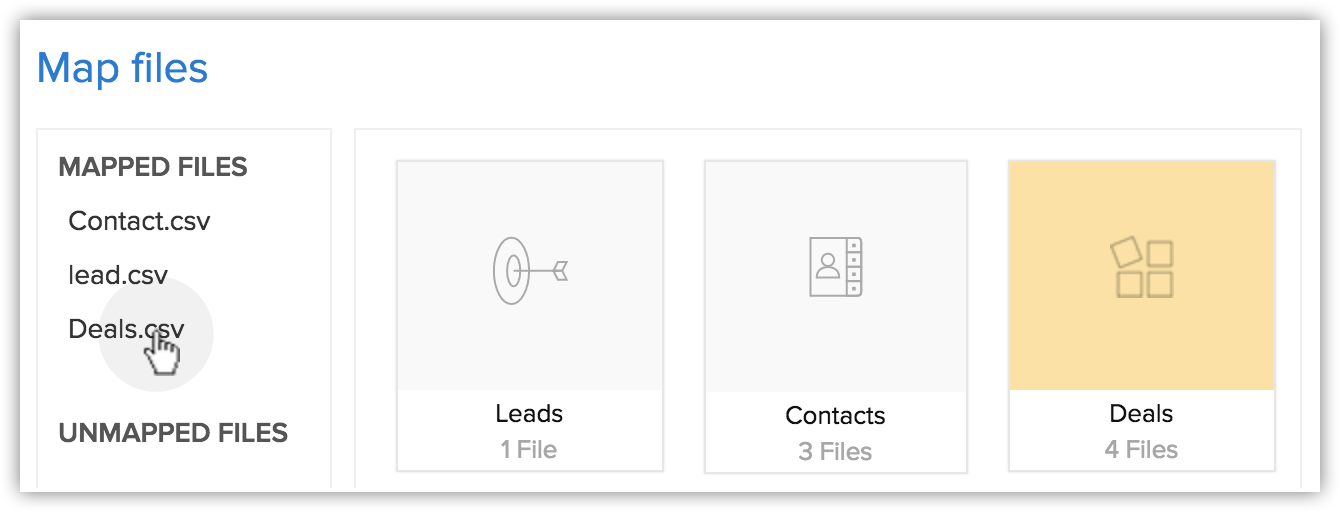
- View the mapped, unmapped and unsupported files separately.
- Click the Discard Migration link to start again.
- View the mapped and unmapped modules separately.
- Click on a module to view the files that have been mapped to it.You can also select from the Unmapped files and map them. Multiple files can be mapped at the same time.You can also create a new module and map the appropriate file.
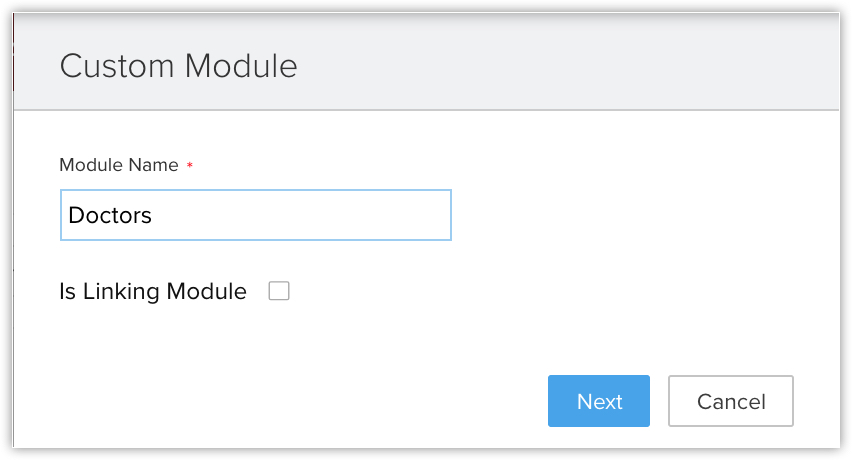
At this step you can create a new module:- Click Create New Module.
- Enter the module name and click Next.
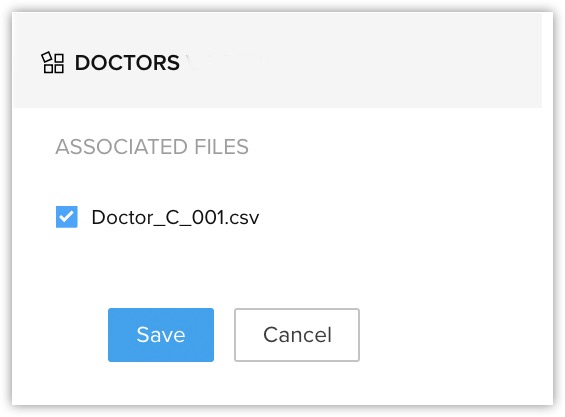
- Select the file to be mapped with this module and click Save.
- Click Create New Module.
- Click Next.
The mapped modules will be listed where you can map the fields for each module. - In the Field Mapping tab, make sure that you map all the mandatory fields.
The field names that you specified in the .CSV file will be available in the drop down lists. - Click Create New Fields to add new fields and insert data for them during the migration.
The number of fields that you can create depends on your Zoho CRM edition. (Skip to step 12 if you do not want to create fields.) - In the Create New Fields pop-up, do the following:
- Modify the field labels, if required.All the fields from the import file that were not mapped for migration because they are not available in Zoho CRM will be listed with their column numbers from the import file.
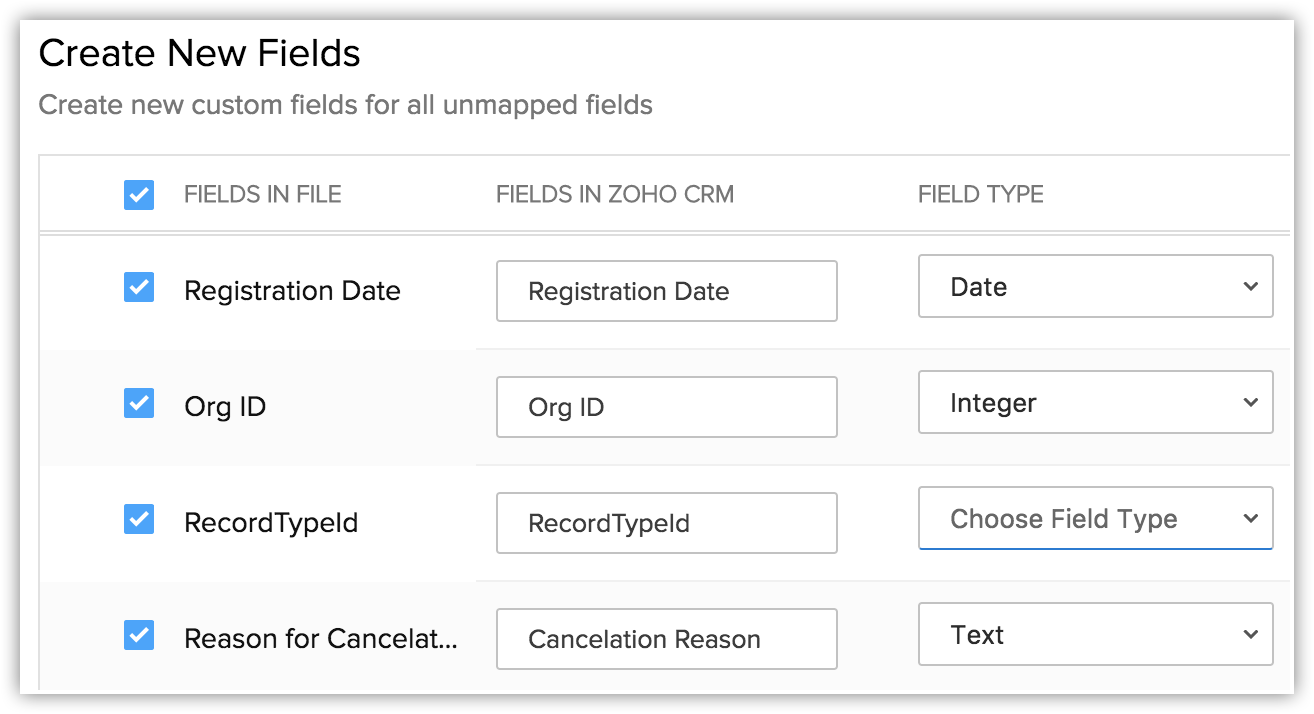
- Select the Field Type from the drop-down list.
Autonumber and Formula are not available. You cannot create these fields during migration. - Click Create.
The field will be created and mapped to the columns in the import file. - Click Close to continue the migration process.
- Click Mapped Fields and Unmapped Fields to view the columns that are mapped and not mapped respectively with the fields in Zoho CRM.
- Click the Reset Mapping link to start mapping from scratch.Any mapping you have done so far will be removed and you can start over.
- Click the Auto Map link to let CRM map the import columns with matching fields.The system will identify columns that match the CRM fields and map them automatically.
- Hover over the field and enter the field values in the Replace Empty Values text box.
Sometimes the field in an import file doesn't have a value, in case that field is marked mandatory in CRM, the record will not be imported because of absence of value. To avoid such situations, you can mention an alternate value that will replace the empty field.
For example, you have mapped the Last Name field from the file with the Last Name field in the Leads module, which is mandatory. So without the field value, the record will be skipped during the import process. To avoid that, you can specify the value that should replace the empty Last Name field. - Hover over the field and click the Add (+) icon next to the field name and map multiple fields in CRM with a single field from the file.
For example, if the Billing Address and the Shipping Address are same you can map both these CRM fields to the appropriate fields from the file. - Click the Assign Default Values tab and select the CRM Fields with the appropriate Default field values.
Once the values are specified, all the records will have the field value that you have specified by default. For example, you are importing a set of records to the Leads module and the Lead Source is common for all the records. The appropriate value for the lead source can be chosen here so that all the records will have the specified field value by default. - Click Save and Next.
- In the Review page, check the Field Mapping Status and the Pre Migration Statusfor Each Module.
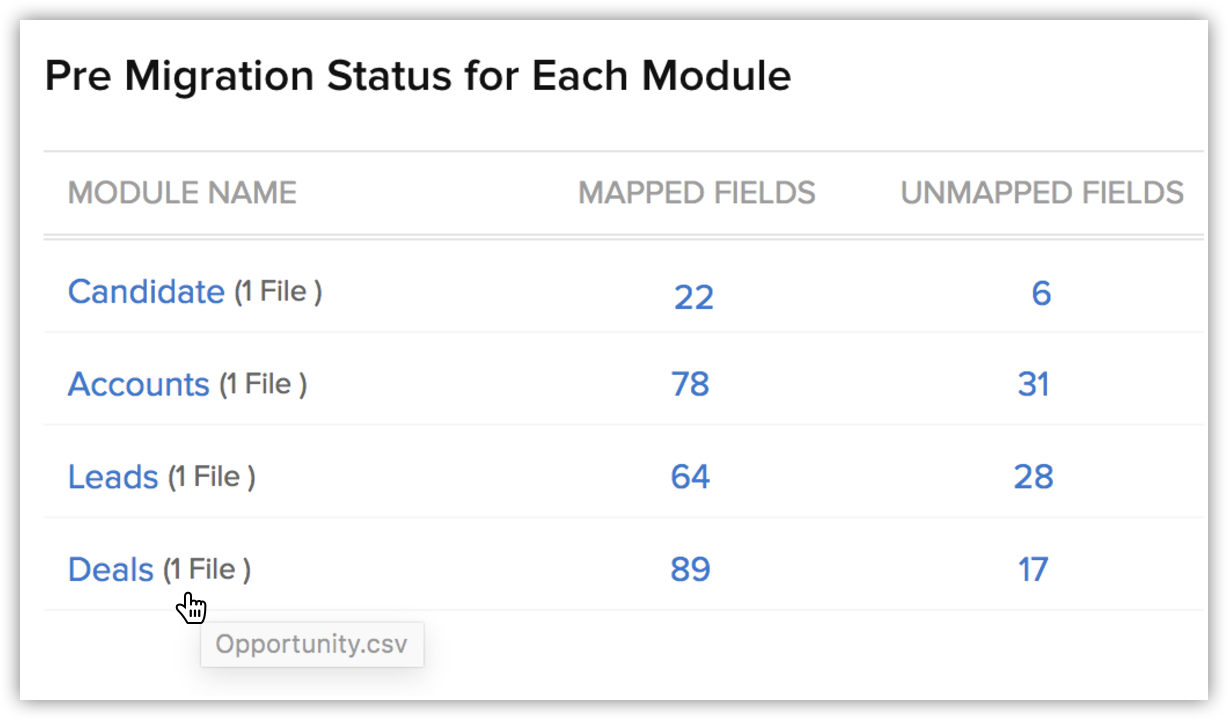
- Click Start Migration to initiate data migration.
You can still click Edit Mapping and re-run Migration while the migration is running.
Related Articles
Migrating from Microsoft Dynamics CRM to Zoho CRM
Converting the format of the MS Dynamics data files Zoho CRM supports only .CSV file format for migration of data. However, the export data from Microsoft Dynamics CRM is in .BAK format. You can get in touch with our team (migration@zohocrm.com) who ...Which edition will the new CRM account be subscribed to?
Zoho CRM allows users to access multiple organizational (CRM) accounts using the same email address. This is especially useful for organizations who maintain different CRM accounts to manage their business, such as a franchisee or a subsidiary. The ...I am unable to create new CRM organizations. Why is this?
In the following cases, you will not be allowed to create a new organization: If you are already associated with 10 org accounts. If you are a Super Admin in five org accounts. You can be associated with up to five more accounts through invitation ...Can I invite a CRM Plus or Zoho One account user to join a CRM org? How many Zoho One accounts can they be part of?
Yes, a CRM user can be invited to a CRM plus or Zoho One account. You must consider the following points: A CRM user can be part of 9 CRM Plus accounts through invitation. A CRM user can be part of 1 Zoho One account as an internal user. Whereas, the ...Migrating Data Between Zoho CRM Accounts
Retrieve Data files from Zoho CRM If you are planning to use a backup of data from Zoho CRM to import, the file structure does not change. If you exported data from another CRM, use the following folder structure: The Data folder should contain all ...