Connecting Social Channels on Zoho Social
Let's move on to learn in detail on how you can connect your social channels on Zoho Social.
Connecting a Facebook Page
1. Click on Connect Facebook from the pop-up window.
2. Log in to your Facebook account.
3. Enter your password to continue adding your account to Zoho Social.
4. Click +Add to connect Facebook Page associated with your Facebook account.
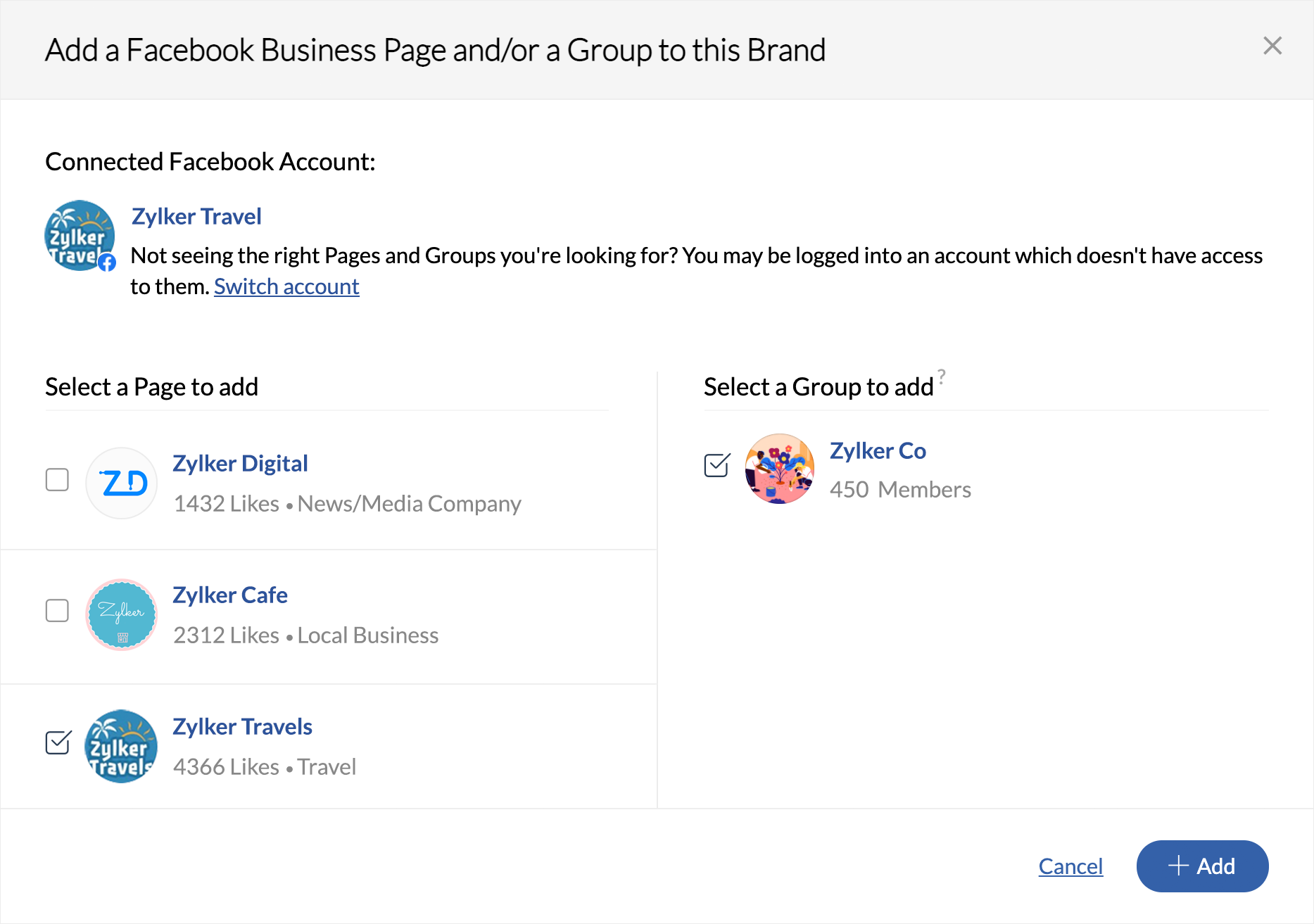
5. If you don't see the right page, try switching to a different account and add an associated Facebook Page.

You can manage a single Facebook Page with one Brand on Zoho Social. Learn more about adding multiple Brands if you need to manage more than one Facebook Page.
Connecting a Facebook Group
1. Click on Connect Facebook from the pop-up window.
2. Log in to your Facebook account.
3. Enter your password to continue adding your account to Zoho Social.
4. Click Authorize Zoho Social on Facebook.
5. Click +Add to connect Facebook Group associated with your Facebook account.
6. If you don't see the right group, try switching to a different account and add an associated Facebook Group.
You can manage a single Facebook Group with one Brand on Zoho Social. Learn more about adding multiple Brands if you need to manage more than one Facebook Group.
Connecting a Twitter Profile
1. Click on Connect Twitter from the pop-up window.
2. Log in to your Twitter Profile.
3. Click on the Authorize App button to allow Zoho Social to manage your social channel.
4. Your Twitter Profile will be automatically connected to Zoho Social.
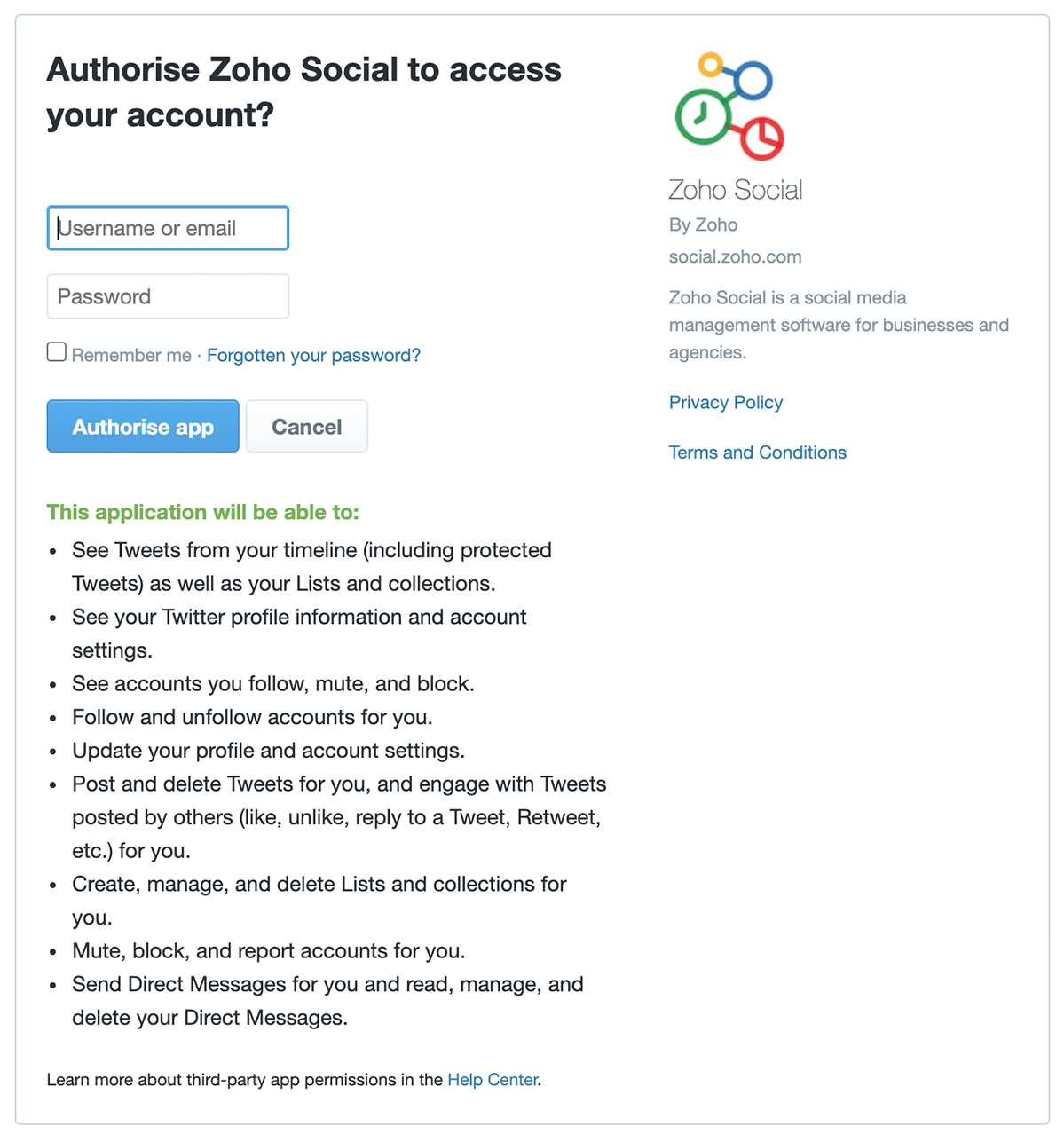
You can only add one Twitter profile to one Brand on Zoho Social. Learn more about adding multiple Brands to manage more than one Twitter Profile.
Connecting a LinkedIn Page and Profile
1. Click on Connect LinkedIn from the pop-up window.
2. Log in to your LinkedIn Page.
3. Check the box to add a LinkedIn Profile on Zoho Social.
4. Check the box to add a LinkedIn Page associated with the LinkedIn Profile.
5. If you don't see the right page, try switching to a different account and add an associated LinkedIn Page.
6. Click +Add.
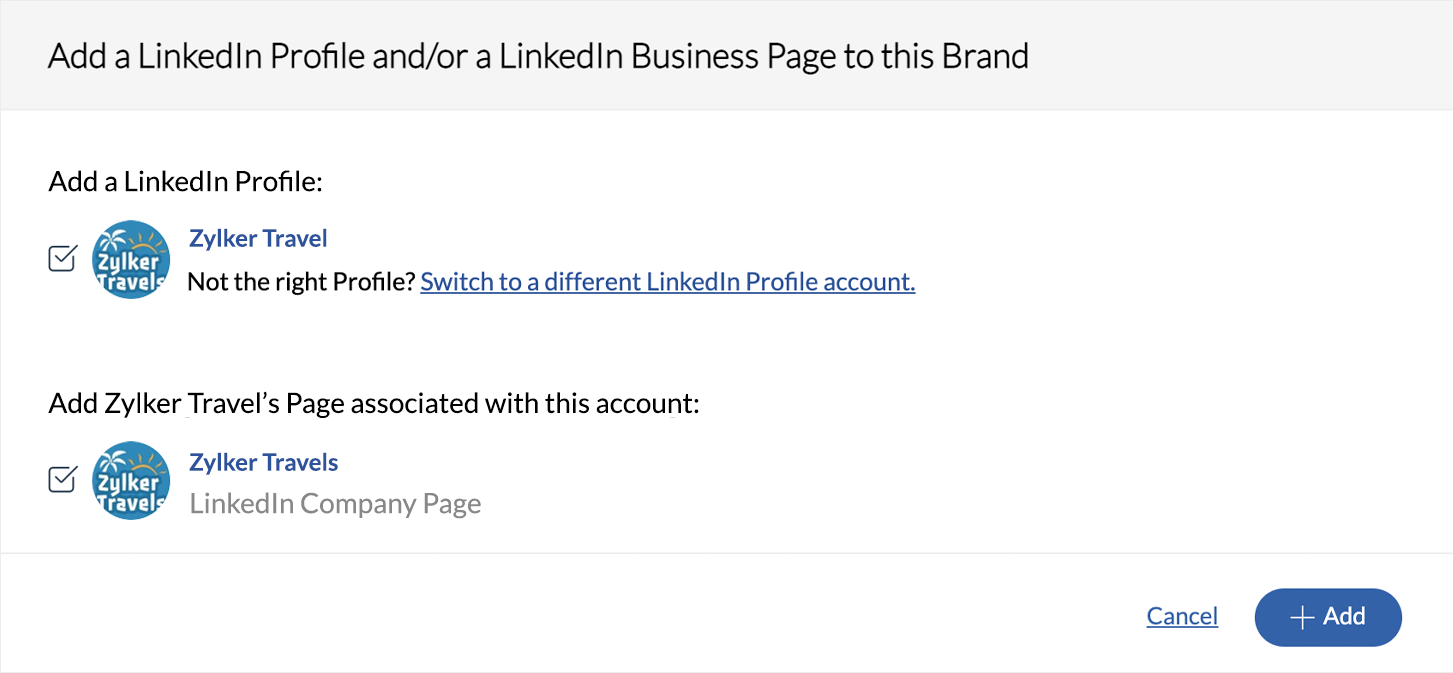
You can only add one LinkedIn Page and one Profile to each Brand on Zoho Social. Learn more about adding multiple Brands if you need to manage more than one LinkedIn Page and Profile.
Connecting a Google My Business listing
1. Click on Connect Google My Business from the pop-up window.
2. Log in to your Google account.
3. Allow Zoho Social to access your Google Account.
4. Click on +Add to connect a verified Google My Business listing to Zoho Social.
5. You can only connect one verified Google My Business listing to Zoho Social.
Connecting an Instagram Business Profile
1. Before you connect your Instagram Business Profile to Zoho Social, ensure that you are logged into your Facebook Account to which you have linked your Instagram Business Account.
2. After that you have logged in, you would get an option to choose your Instagram Business Profile connected to the Facebook Page you logged into.
3. Click on the checkbox against the Instagram Business Profile (If you have multiple accounts) and click +Add.
3. Click on the checkbox against the Instagram Business Profile (If you have multiple accounts) and click +Add.
4. Finally, select your Instagram account type as Creator or Business from the consent window and hit Done.
You can only add one Instagram Business Profile to one Brand on Zoho Social. Learn more about adding multiple Brands to manage more than one Instagram Business Profile.
Connecting a YouTube Channel
1. Click on Connect YouTube from the pop-up window.
2. Log into your Gmail account to which you have connected your YouTube Channel.
3. Click on the Allow button for Zoho Social to manage your YouTube videos, account, and analytics reports for your YouTube content.
Connecting your Pinterest Profile
- Go to Settings > Social Channels and click Connect next to Pinterest Profile. You will be redirected to the login page.
- You can also click the Pinterest icon next to Add more channels from the Home page under Brand Health.
- Log in to your Pinterest account.
- Click Give Access in the Authorize App page after reading the permissions required by Zoho Social.
Related Articles
An Introduction to Zoho Social
There's so much to social media marketing—scheduling and publishing content, listening to and engaging with your audience, and analyzing performance across social networks. We understand that your presence on social media is an integral part of ...How to connect a YouTube channel on Zoho Social?
Connecting YouTube channel from the Home tab To connect your YouTube channel from the Brand Health, 1. Click on the Home Tab and tap on Connect Your YouTube Channel option under Brand Health. 2. Now, from the consent window, choose a Google account ...Connecting your Pinterest account in Zoho Social
Pinterest is an image-sharing social media service that lets you create and share your ideas, and get inspired by the billions of images available online. When you find images that you like, you can pin and save them to your board, which makes it ...Connecting a YouTube Channel
You can schedule and upload videos to your YouTube channel right from your Zoho Social Dashboard. The first step to that is connecting your YouTube account to Zoho Social. To do that, follow these steps: -> Click on the Home Tab and tap on Connect ...Brands and Portals
What is a Portal? In Zoho Social, a Portal houses all your Brands. You can connect and manage your pages and profiles to different Brands on Zoho Social. When you first sign up for Zoho Social, a Portal is automatically created for you. To change ...