Can I upload and store images and video on Zoho Social?
Yes, you can upload and store images, videos, and GIFs within Zoho Social's Media Library which is a content repository. You can upload media to the Media Library on Zoho Social directly from your Desktop or using the Cloud Picker tool that lets you pull media from your connected cloud services like Dropbox, Evernote, Zoho WorkDrive, etc..
Each file that you upload to the Media Library can be upto 36 MB in size.
To upload media to the Media Library from your Desktop
To upload media from the Desktop to the Medial Library on Zoho Social, follow the steps below.
1. Go to the Posts tab on your Dashboard.
2. Tap on the Media Library tool on the left-hand-side menu.
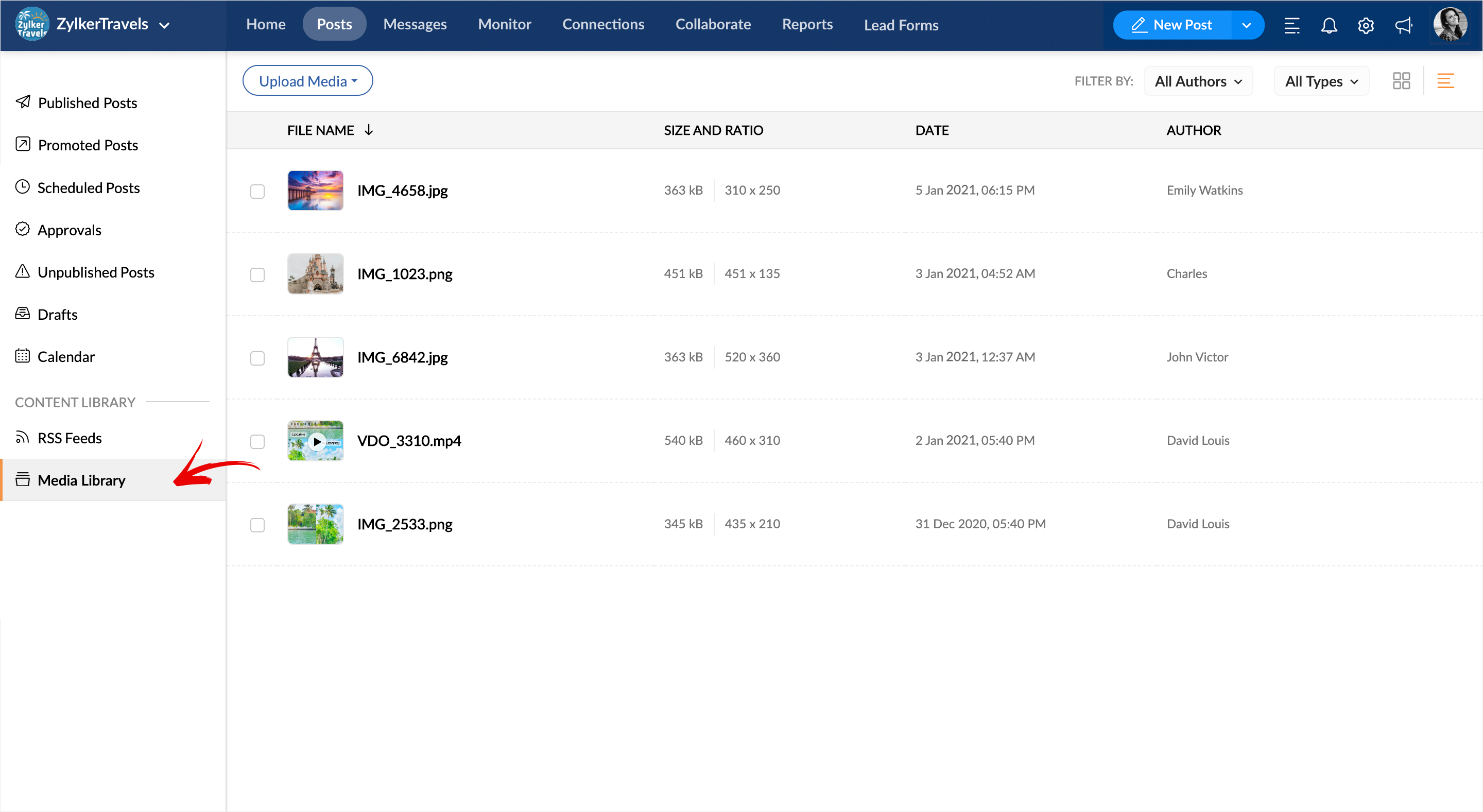
3. Click on the Upload Media button on the top.
4. From the drop-down, select the option as Desktop.
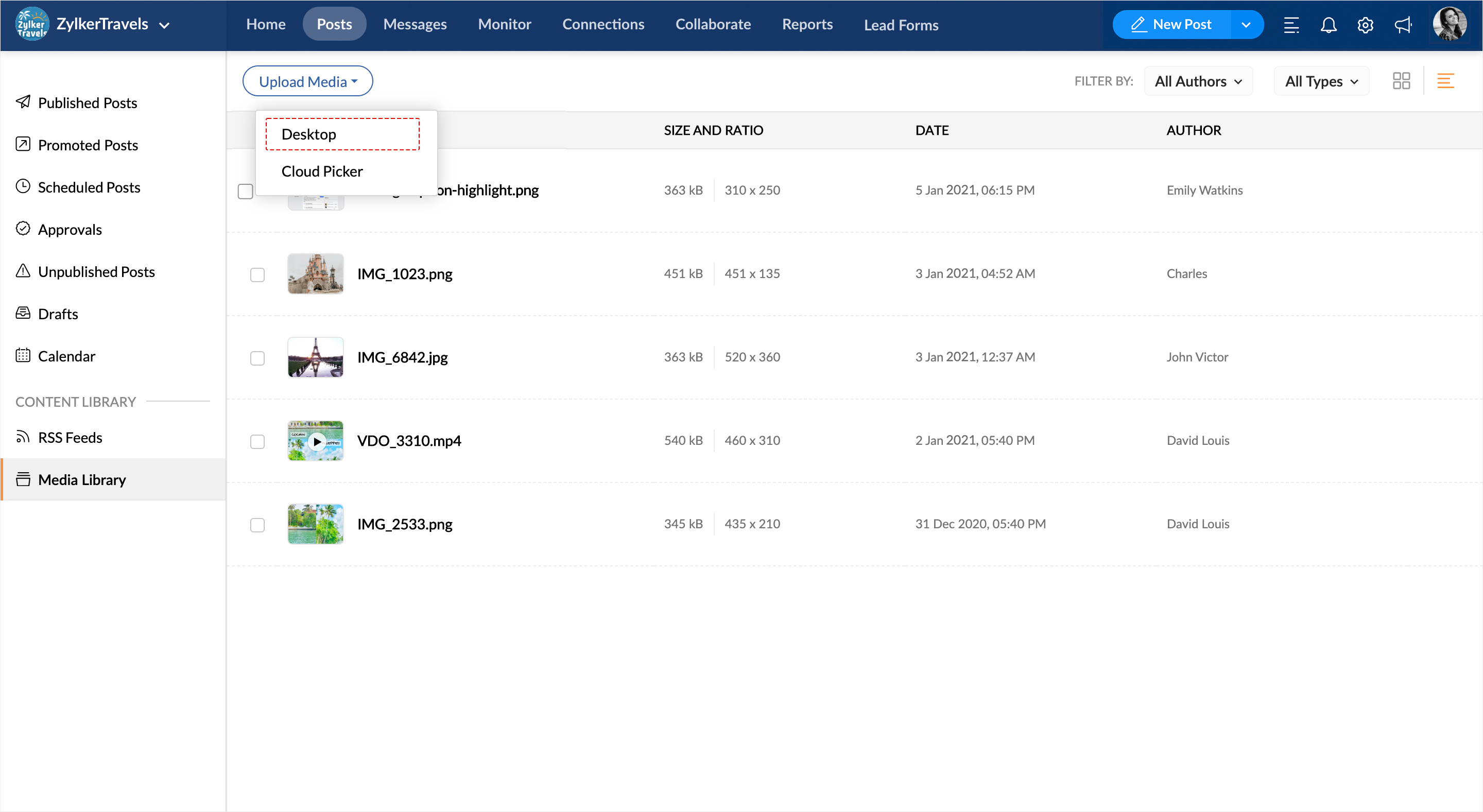
5. Attach the media of your choice from your Desktop and hit the Open button followed by the Attach button to add it to your Media Library.
To upload media to the Media Library from the Cloud Picker tool
1. Go to the Posts tab on your Dashboard.
2. Tap on the Media Library on the left-hand-side menu.
3. Click on the Upload Media button on the top.
4. From the drop-down, select Cloud Picker as your option.
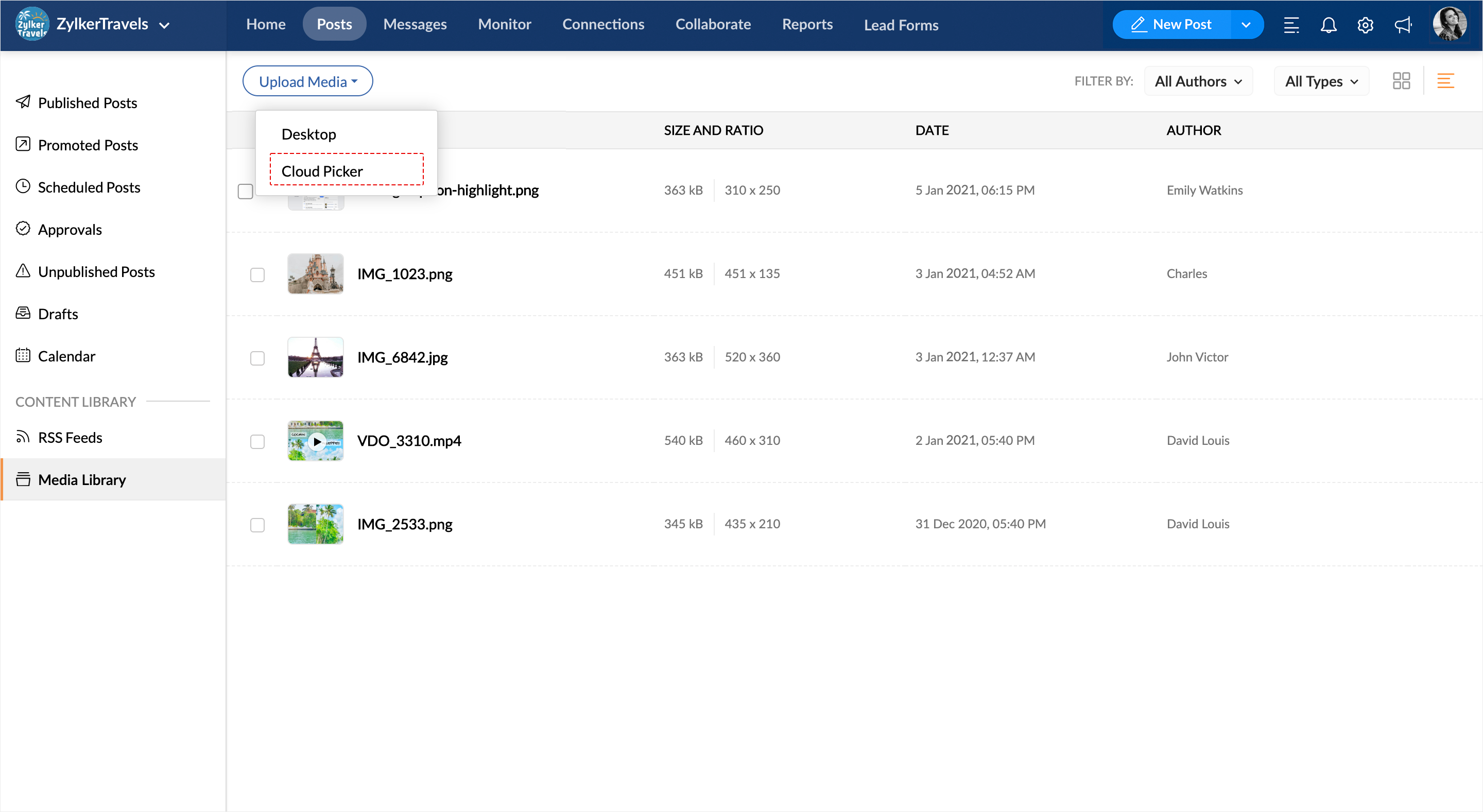
Cloud Picker on Zoho Social currently supports six platforms from where you can choose to upload media files.
Zoho WorkDrive
Google Drive
Box
OneDrive
Dropbox
Evernote

Ensure that you authenticate each of these cloud services from your Publishing Window, before you start generating media content from them.
Related Articles
Media Library on Zoho Social
Media Library on Zoho Social is a file management space that helps you add and manage images, GIFs, and videos to use for your social media posts. With the Media Library, you can upload pictures, videos, and GIFs from your Desktop or Cloud and ...How to upload media from Box?
To upload media from Box to the Media Library on Zoho Social, 1. Click on the third option- Box on the Cloud Picker window. 2. Select the images, videos, and GIFs you want to include and hit the Attach button.How to upload media from GoogleDrive?
To include media from Google Drive, follow the steps below. 1. Click on the second option- Google Drive from the Cloud Picker window. 2. Select the media files from the list of all media displayed and hit the Attach button. You need to be logged in ...Video Thumbnail Customization
Be it a good or a bad impression, a video thumbnail says it all. A video thumbnail is essentially a snapshot that hints at what your video is all about, letting the viewer know what they're about to watch. Adding custom and auto-generated thumbnails ...Why can't I upload an image of my choice as a thumbnail for Instagram video?
You cannot currently upload an image file to set custom video thumbnail for Instagram. You can however, choose any frame from your video or select one of the auto-generated suggestions from Zoho Social, to set as video thumbnail.